




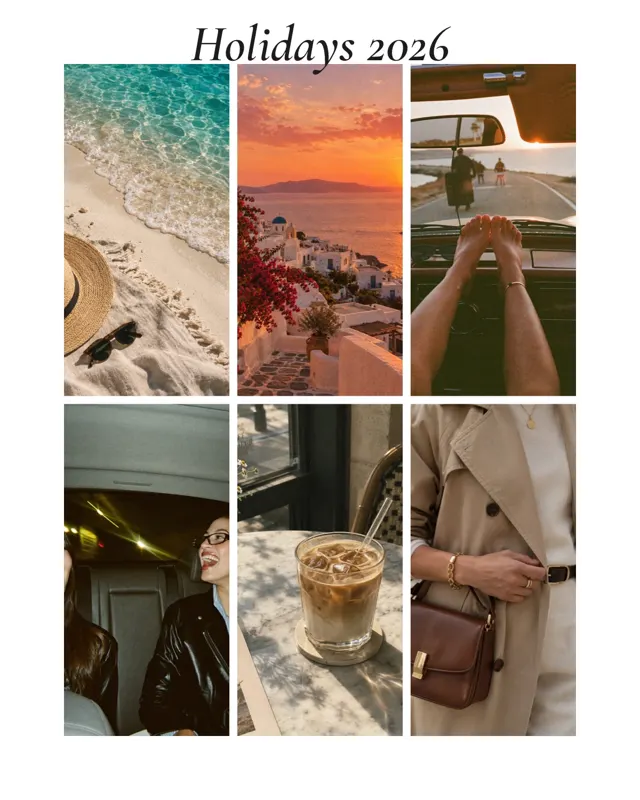



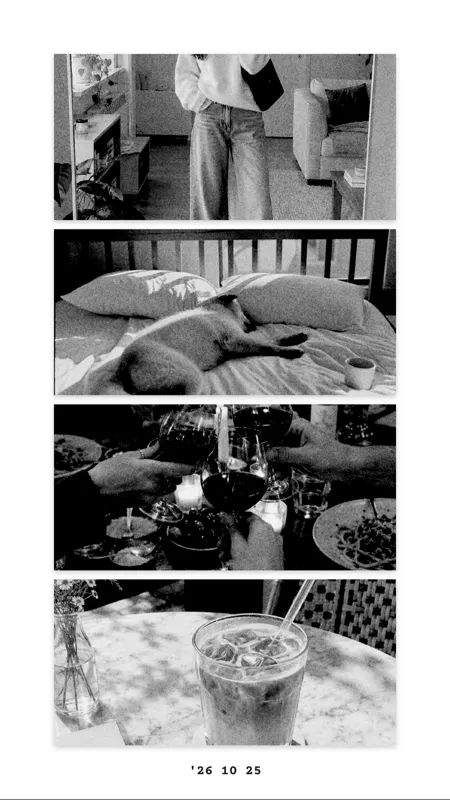

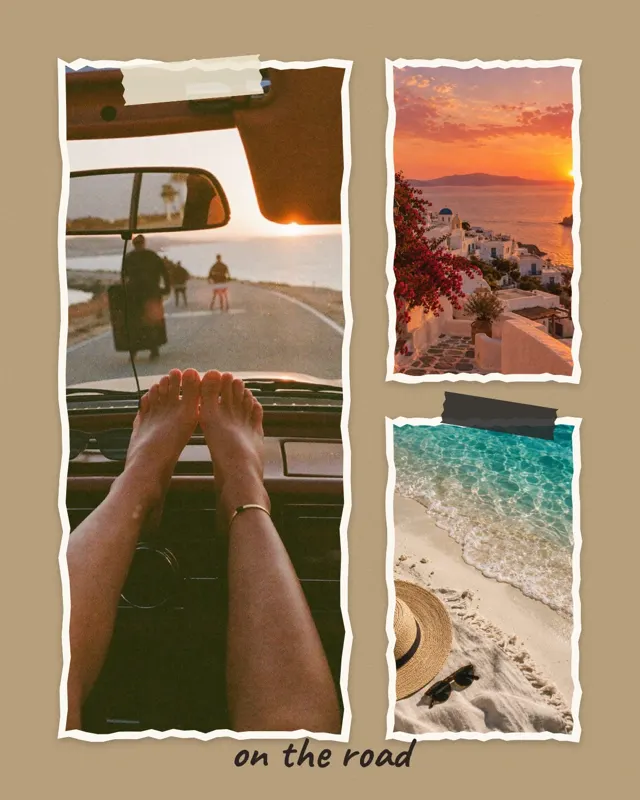
A fair before and after
For a fair comparison, both pictures should show the same framing. Zoom them in mosa so the horizon and subject sit at the same height.

Two pictures, one photo
Before and after, then and now, two angles on the same moment. Sometimes all you need is two pictures next to each other. In mosa you pick the photos and the image is done, with or without a border.
Free for iPhone. No ads, subscription, watermark or account.

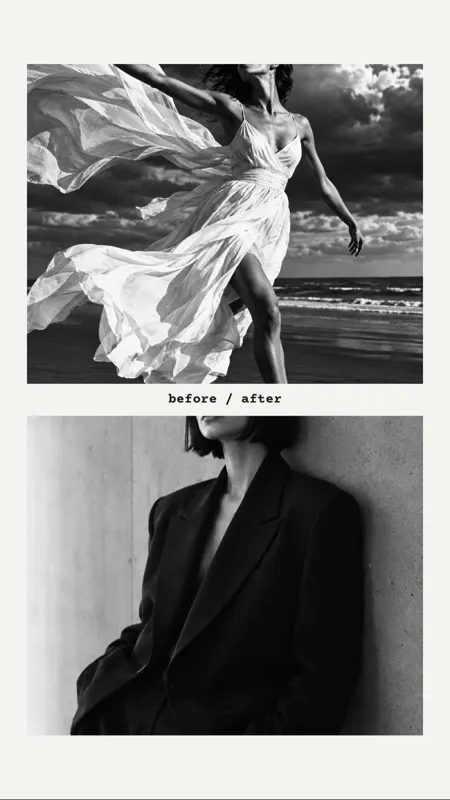




Tap “New collage” and choose two pictures. mosa instantly suggests matching layouts: side by side, stacked or offset.
Drag the divider with your finger to give one picture more room. Use two fingers to move and zoom the crop in each slot.
Without a border it looks like one single photo, with a white border like a print. Then save it straight to your Photos.
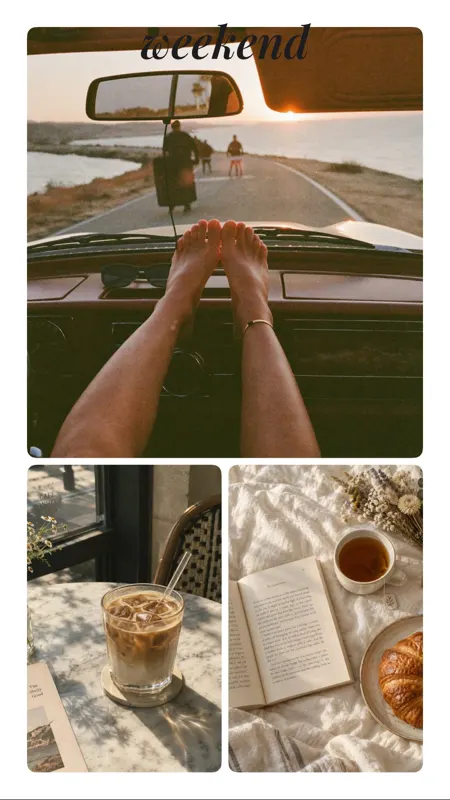
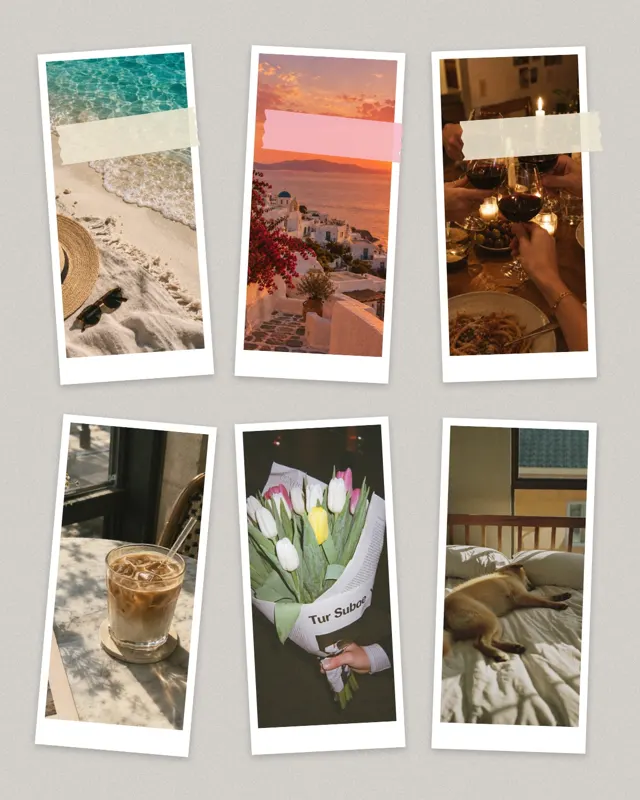
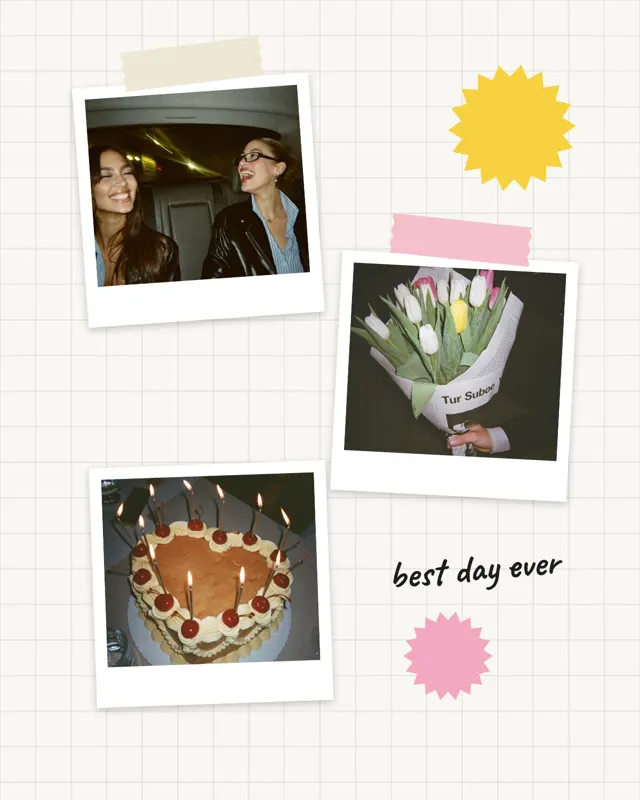
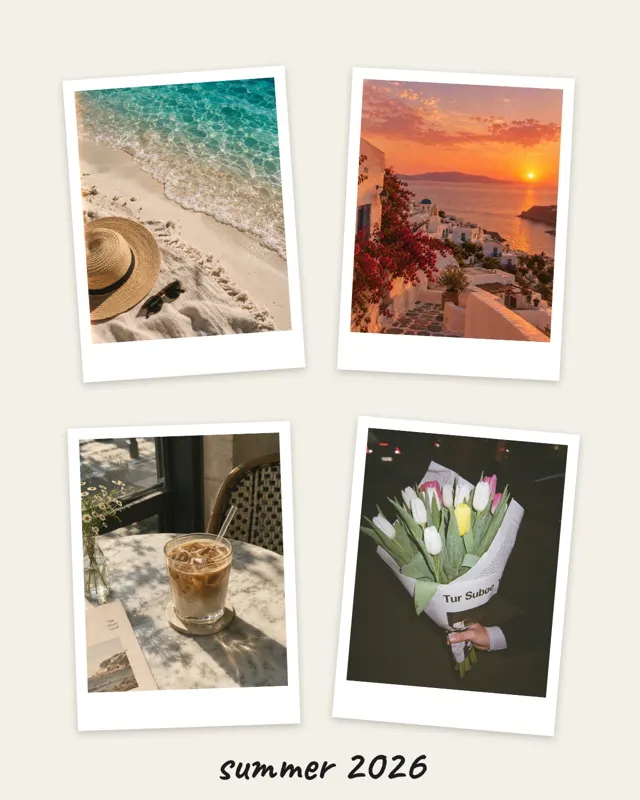
Ready-made templates for when you want a little more design:
For a fair comparison, both pictures should show the same framing. Zoom them in mosa so the horizon and subject sit at the same height.
Two portrait photos fit nicely side by side in a square or 4:5 image. Two landscape photos work better stacked.
Three narrow strips side by side tell a short sequence: beginning, middle, end. The Triptych template is made for this.
Square 1:1, portrait 4:5 or 3:4, story 9:16 and landscape 16:9 are available. You can switch formats at any time.
Short answers.
Yes. Set the border in mosa to zero and the two pictures meet edge to edge.
Yes. For two photos there are side-by-side, stacked and offset layouts, and you drag the divider freely.
mosa works with the originals from your library. How sharp the result is depends mainly on how far you zoom into a photo.
Yes, with the “Combine Images” action in the Shortcuts app. It joins photos side by side, stacked or in a grid, but offers no border choice, no text and no formats.
No. mosa is free and never adds a watermark.
More guides and templates for your next collage.
mosa is completely free. No ads, no subscription, no watermark and no account.